
Choose a chess clock when two players need separate time and switch the active timer after every move. Choose a visual timer when the whole group needs one shared countdown for a puzzle, mini-game, rotation, explanation, or cleanup. They solve different timing problems. Many first lessons need neither.
This comparison is for parents, tutors, teachers, and club helpers planning beginner sessions. It does not prescribe tournament time controls or promise that a timer improves learning. Start with the job the timer must perform, then check whether visible time helps the actual learners.
The Good Chess & Checkers may earn commissions from qualifying purchases.
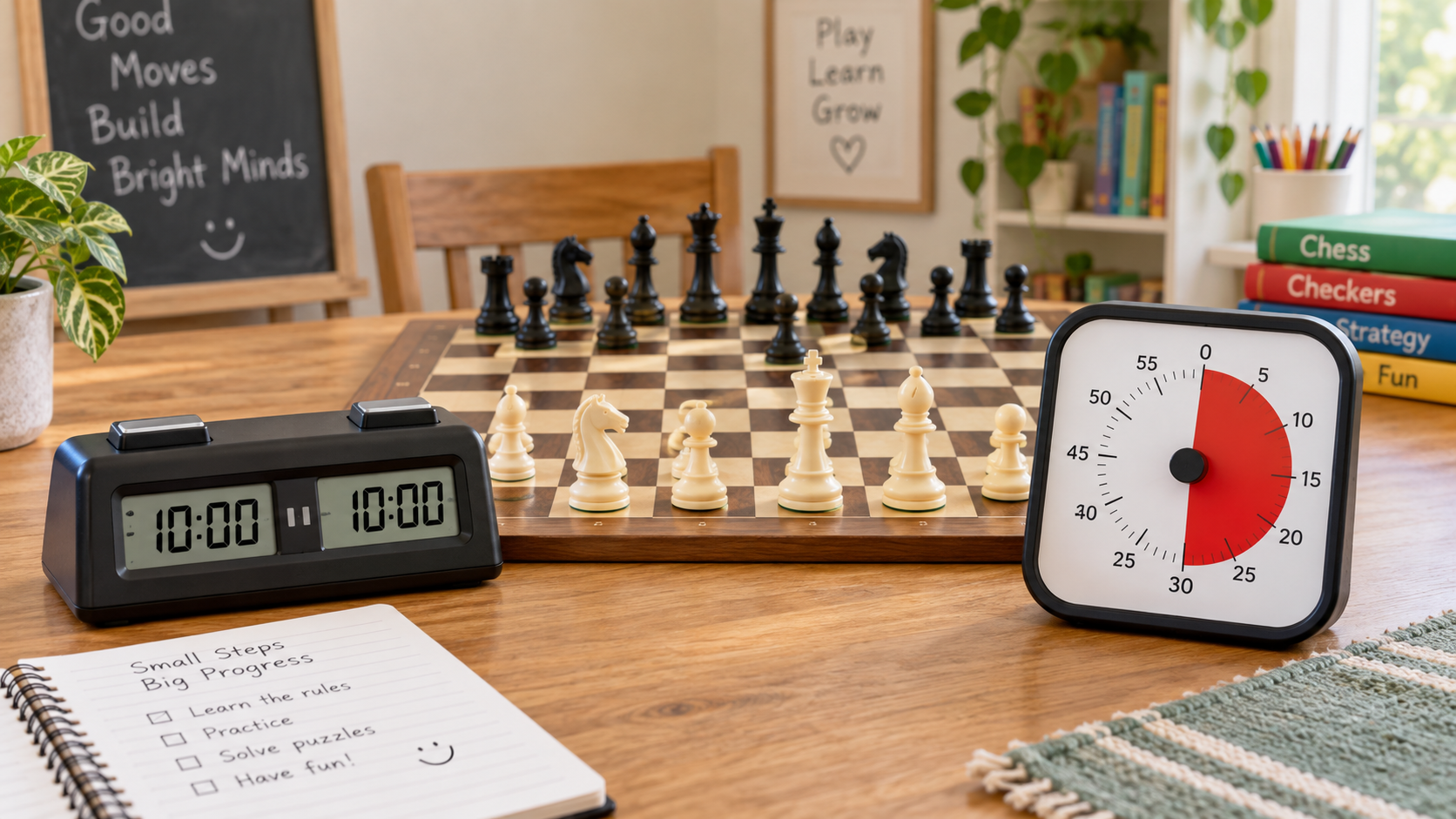
Quick decision aid
Compare two-player timing with one shared countdown
For either category, verify the current product's dimensions, display, controls, timing range, alert options, power source, and instructions. Do not assume a timer shown for classrooms is suitable for individual move timing.
Quick decision
- Choose a chess clock for a two-player timed game, a turn-switching exercise, or practice using a clock after legal moves are already comfortable.
- Choose a visual timer for one activity shared by a whole table or group, especially when learners benefit from seeing a block of time shrink.
- Use both only for separate jobs: a visual timer for the lesson block and a chess clock at an individual board.
- Skip timing when learners are still identifying pieces, checking legal moves, or becoming anxious or distracted by a countdown.
Option A: a chess clock times two sides
A chess clock contains two linked timers. After making a move, one player presses a button or sensor to stop their own time and start the opponent's. That makes it useful when the lesson goal includes completing a timed game, sharing a fixed thinking-time budget, or learning the physical press-after-move routine.
The tradeoff is extra procedure. The helper must choose a suitable mode, set both sides, explain when to press, handle pauses, and reset the clock. A new player can focus on the clock instead of the board, so introduce it after the movement rules and ordinary turn sequence are reasonably settled.
Best fit
Use a chess clock for two learners playing one another when separate time matters and both can operate the chosen controls. It is also the clearer tool for an exercise where each side intentionally receives its own time.
Option B: a visual timer paces one activity
A visual timer runs one shared countdown. Its useful feature is a remaining-time area that can be understood at a glance. A helper can use it for a five-minute piece-movement mini-game, a puzzle station, a checkers capture exercise, a free-play rotation, or cleanup.
It does not track whose turn it is or preserve separate time for two players. If one learner uses most of the shared interval, the timer does not compensate the other learner. Its job is lesson pacing, not game adjudication.
Best fit
Use a visual timer when several learners begin and end the same activity together, or when the group needs advance notice of a transition. Place it where intended learners can see it without blocking the board or becoming the center of attention.
Compare the full lesson routine
Timing job and audience
Write one sentence before shopping: “I need to time each player's thinking” points to a chess clock; “I need everyone to see when this activity ends” points to a visual timer. If the sentence is only “I want lessons to move faster,” test a free timer and a written lesson plan before buying anything.
Visibility and controls
A chess clock display must be readable by the two players and its switch controls must be easy for both to reach. A visual timer must be legible from the learner positions it serves, while reset controls can remain with the helper. Check listed dimensions rather than judging size from product photos.
Sound and interruptions
Verify whether the exact timer offers an alert, adjustable sound, a silent visual mode, or button sounds. Match those documented settings to the room. Do not assume “classroom,” “quiet,” or “digital” wording guarantees a particular sound level.
Setup and reset
A chess clock may require programming two times or selecting a mode; a visual timer usually needs one duration. Rehearse start, pause, correction, and reset before the lesson. If another helper cannot repeat the setup from a short label or note, simplify the routine.
Power, cleaning, and storage
Confirm batteries or charging requirements, follow the maker's cleaning instructions, and store the timer so buttons are not held down. Clubs should label the timer, its power supply, and its usual setting. Remove batteries for long storage only when the maker's guidance supports it.
Run a no-buy lesson test first
- Teach the activity once without visible timing and note the actual transition problem.
- Use an existing phone or kitchen timer where only the helper can see it.
- For group pacing, draw a simple remaining-time bar on a board and update it at intervals.
- For two-player timing, borrow a clock or use a simple clock app for one low-pressure practice game.
- Buy only if the same timing job recurs and the dedicated tool makes the routine clearer for the intended learners.
Who should skip each option?
Skip a chess clock when learners still need unlimited time to find legal moves, the lesson is cooperative rather than competitive, controls are hard to reach, or the helper does not need separate player times. Skip a visual timer when only the adult needs a reminder, activity lengths change constantly, the display distracts learners, or a wall clock and verbal transition cue already work.
Skip both when a countdown creates pressure without solving a repeated pacing problem. A calmer lesson with fewer activities can be more useful than adding another device.
Next steps
For first-clock criteria, read best chess clocks for beginners. For shared lesson pacing, use the visual timer guide. Helpers planning the full room can continue to the beginner-friendly chess and checkers station guide.
Bottom line
A chess clock divides time between two opponents; a visual timer shows one group how long an activity has left. Choose the timing job before the product. Verify visibility, controls, alerts, setup, power, care, and storage on the exact item—and leave the lesson untimed when that better supports the beginner.